

Setting Up a Room
A family’s museum is a set of rooms. Each room is a row in Airtable with a type that decides how it behaves — a wall of photographs, a screening room, a collection of stories. This page is how a room comes to exist and how you bring it online. For what to write into an existing room, see Airtable Curator Fields.
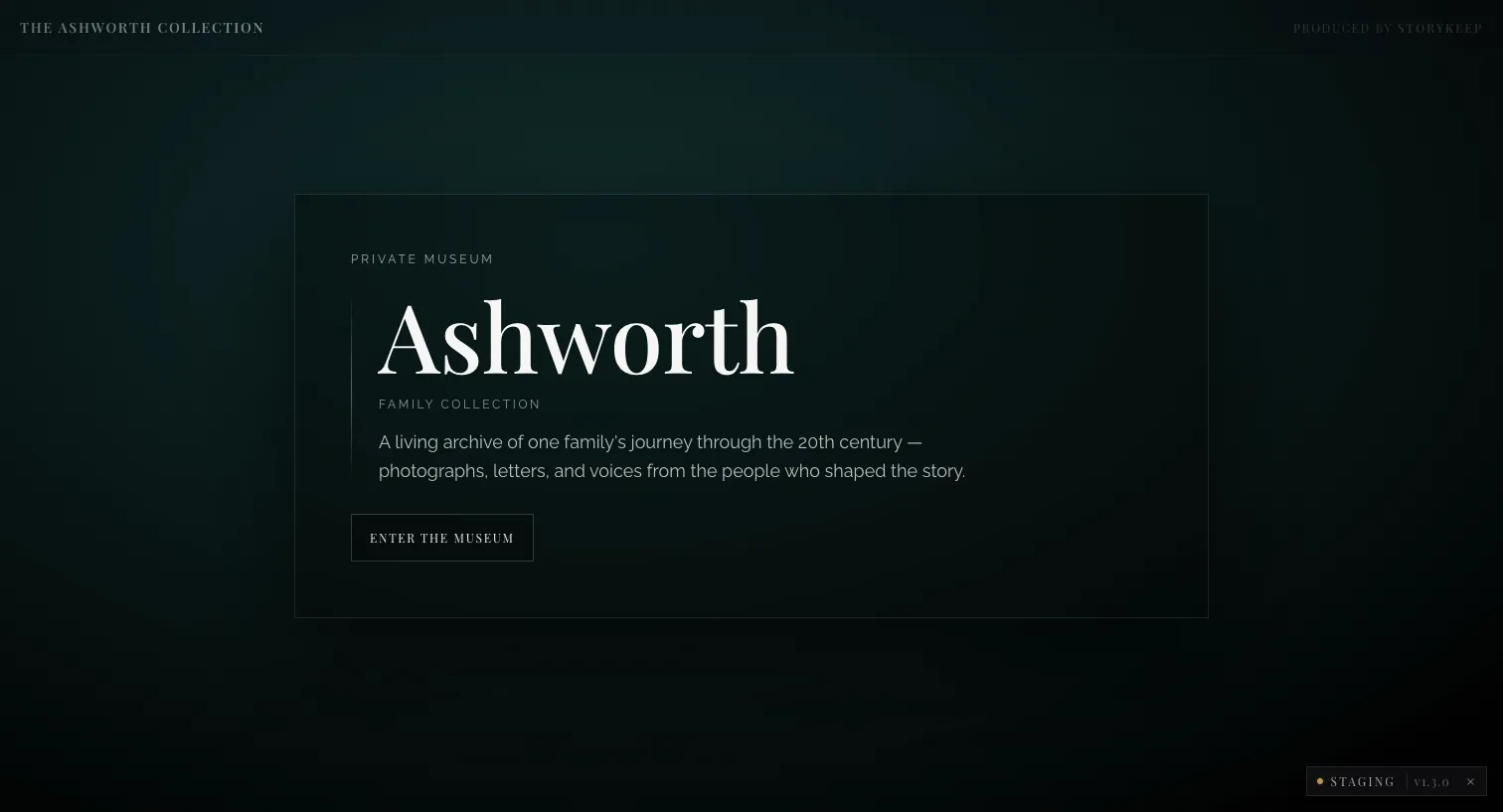
How the museum finds a family’s rooms
Section titled “How the museum finds a family’s rooms”Rooms aren’t hard-coded — the museum follows a short chain of pointers, so a family’s structure lives entirely in Airtable and can change without an engineering release.
-
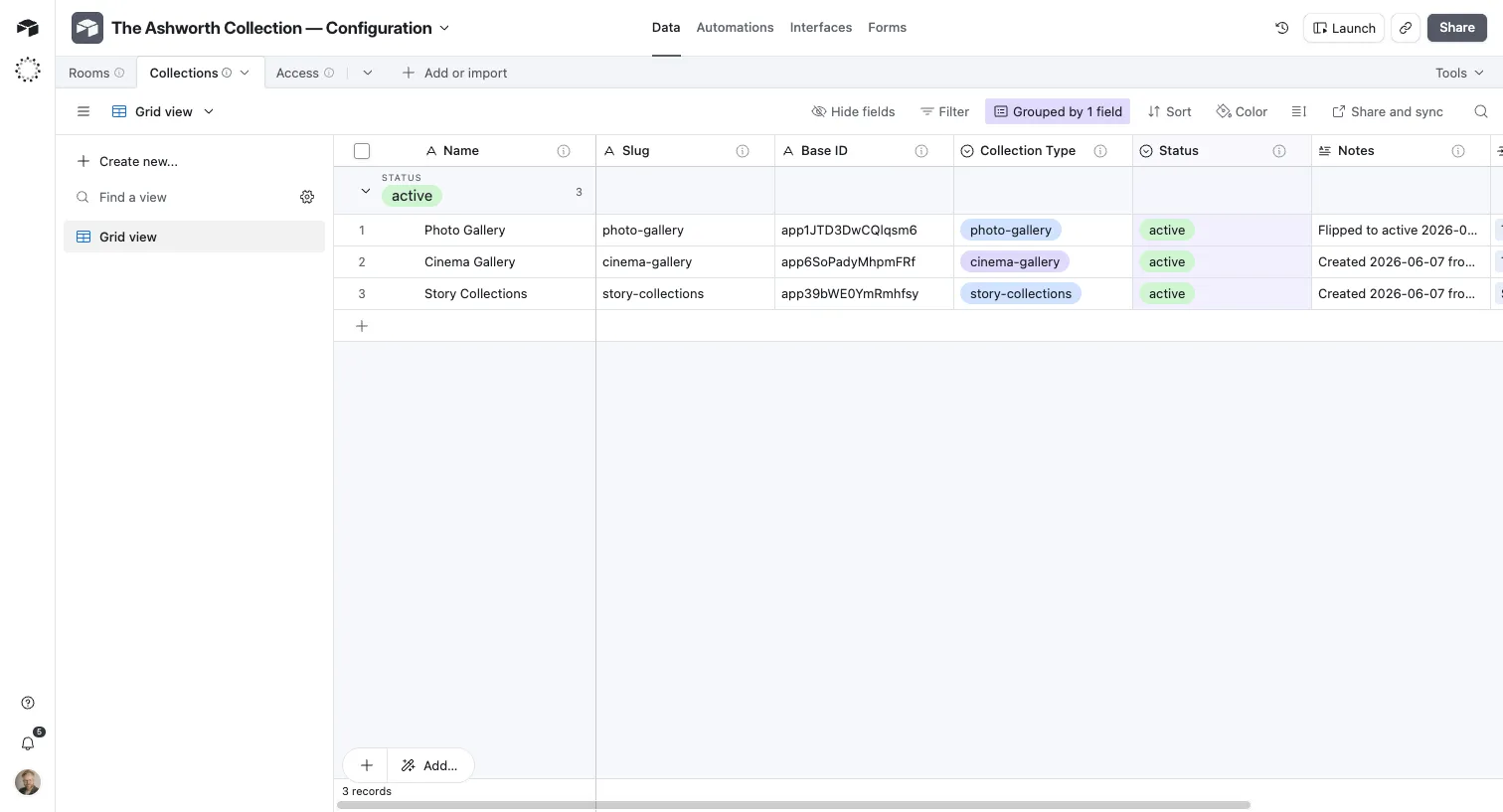
The family has a config base — its home in Airtable. (The Ashworth demo’s is named “The Ashworth Collection — Configuration”.)
-
In it, a Collections table lists the family’s galleries and points at where each one’s content lives (each row carries the
Base IDof a gallery base). -
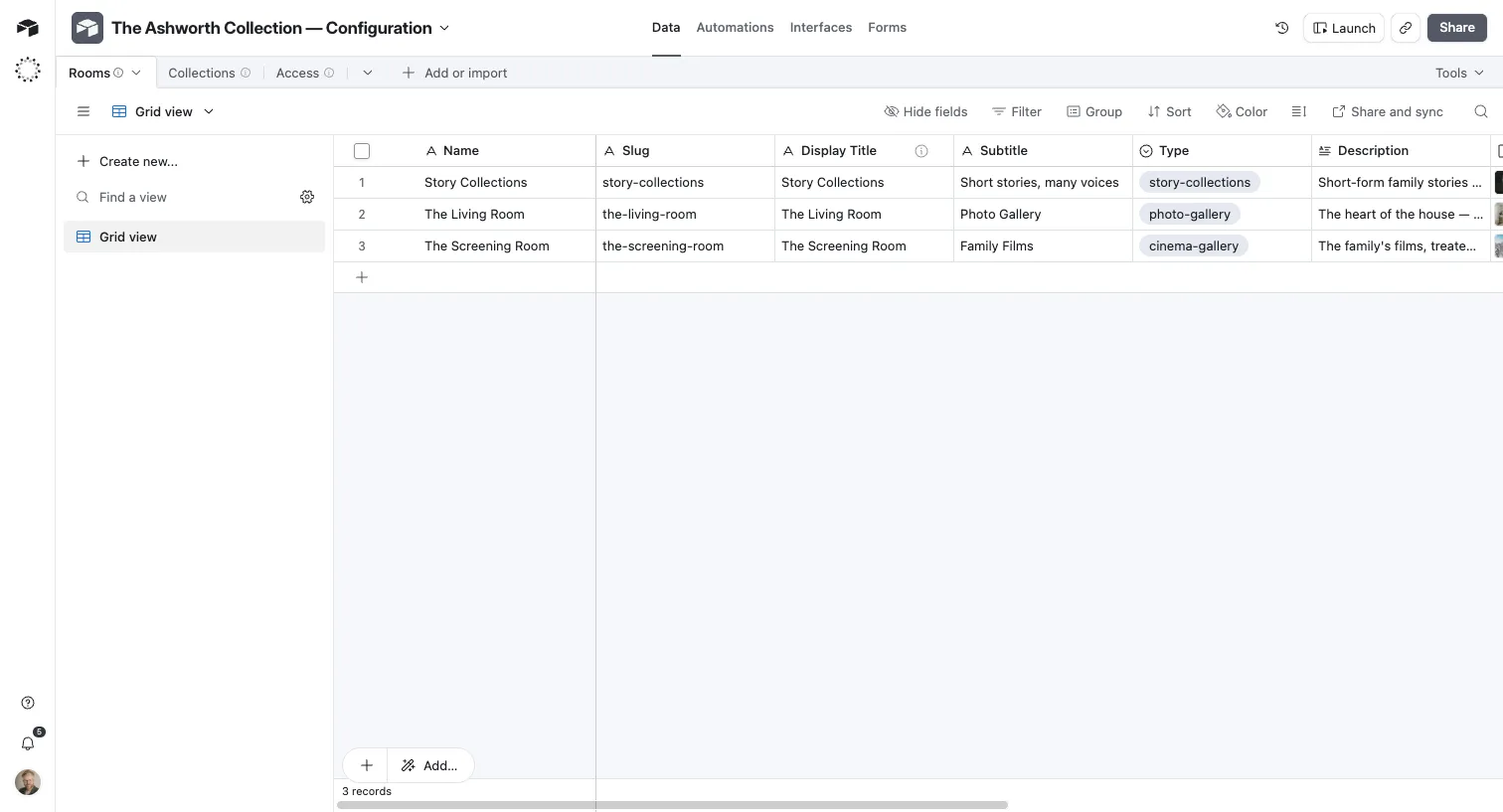
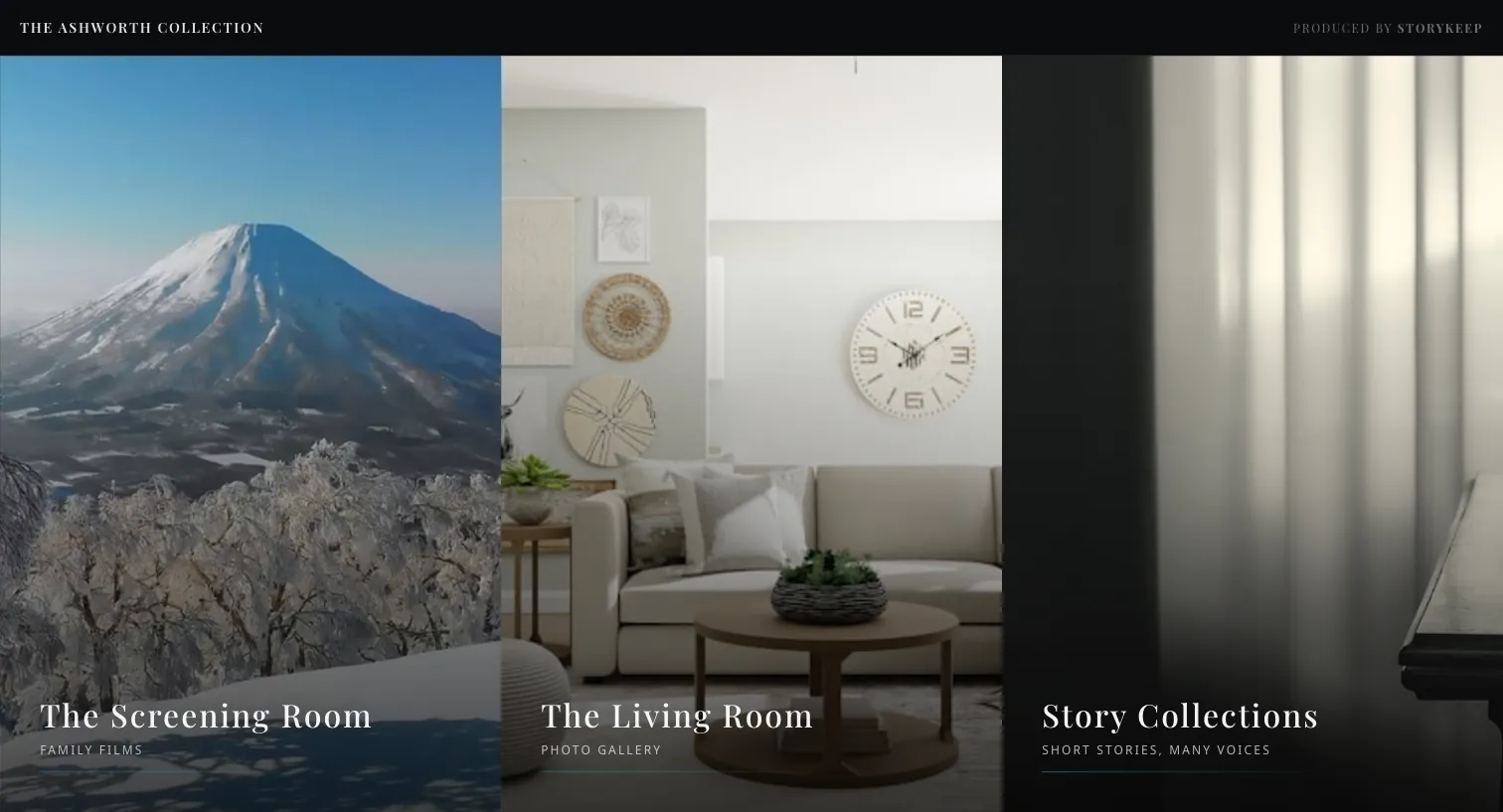
A Rooms table — in the same config base, alongside Collections — holds one row per room, each with a Type. This is what the lobby is built from.
One room, one base
Section titled “One room, one base”A room binds exactly one content base, and everything in that base belongs to that room. There is no second place that says which room a photo or a film is in — base membership is room membership. So a family with three rooms has three content bases, and pointing two open rooms at the same collection is a configuration error rather than a shortcut.
The room types
Section titled “The room types”The Type field on a Rooms row decides everything about how that room presents. Pick the one that fits the material:
| Type | For | Its steps + fields | Deep dive |
|---|---|---|---|
| Photo Gallery | A wall of photographs and photo sets | Setting it up | Photo Gallery |
| Cinema Gallery | Films / screenings | Setting it up | Cinema Gallery |
| Story Collections | Written or spoken stories grouped into collections | Setting it up · Curating Story Collections | Story Collections |
| Family Tree | Interactive genealogy | How a curator builds it | Family Tree |
| Map | Places, plotted | Not built yet | Map |
| Timeline | Events across time | Not built yet | Timeline |
Each type reads its own content and ignores the others — a film room never touches the photo machinery, and vice versa. Adding a room is choosing its type and filling the fields that type expects.
Bringing a room online
Section titled “Bringing a room online”-
Add the room. Create the Rooms row, set its Type, and give it a name that reads well on the wall (legibility first — see How Curation Works).
-
Add its content. Fill the fields that type expects — photos and sets for a gallery, films for a cinema room, and so on (each room-type page in the table above lists the fields it uses).
-
Set it live. Flip the Collection’s
Statustoactive(onlyactivecollections are served), and set the Room’s ownStatustoopen. A collection left un-active, or a room lefthidden, shows no tile — visitors simply don’t see it. -
Wait for the refresh. As always, you’ll see the room in your own curator view immediately; visitors see it after the next scheduled refresh (see How Curation Works).
Showing a room as “under construction”
Section titled “Showing a room as “under construction””A family’s museum can open with some rooms finished and others as tasteful teasers, rather than hiding the unfinished ones entirely. Set the Room’s Status to under construction and it shows as a public “coming soon” tile instead of a live room. Use this to open a museum early with its strongest room, and let the rest arrive over time.
Where to go next
Section titled “Where to go next”- How Curation Works — the working model and the refresh rhythm.
- Airtable Curator Fields — the fields you write into an existing room.
- Room Types & Content — the design intent behind each type.