

The Story Exhibit
…films, audio stories, photographs, maps, timelines and family trees within a curated narrative structure.
The story exhibit is the “curated narrative structure” from Piet’s first letter, made into a room of its own. The other rooms show a family’s material by kind: the photographs, the films, the places, the years. An exhibit tells one story, start to finish, in the order a curator chose, with the curator’s own words between the pictures.
Nothing in an exhibit is new. Every photograph, film and recording in it is already in the family’s museum; the exhibit picks a handful and puts them in order. A person makes every choice. Nothing is generated for the curator.
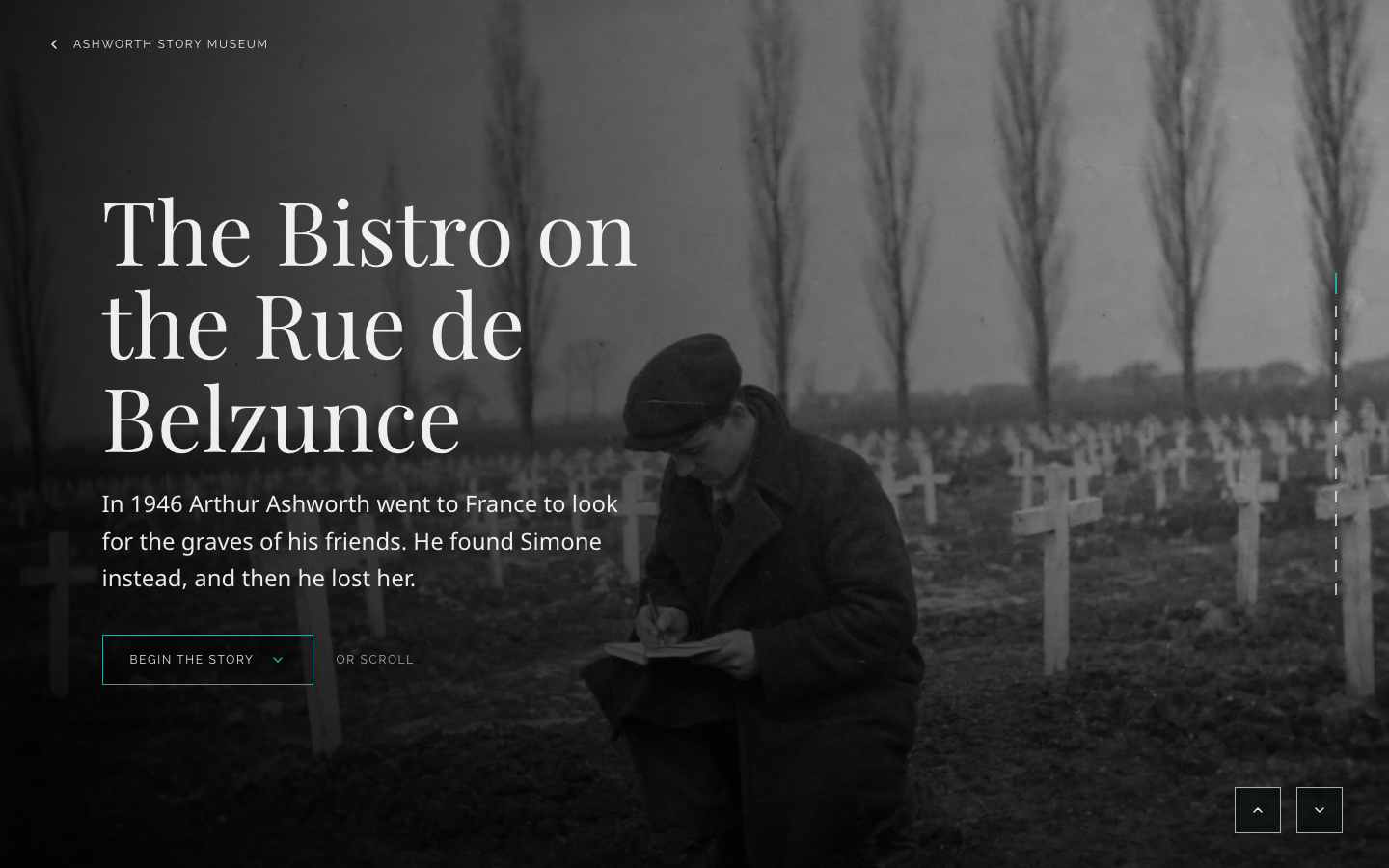
The worked example on this page is “The Bistro on the Rue de Belzunce” from the Ashworth demo: twelve steps on how Arthur Ashworth went to France in 1946 to look for the graves of his friends, found Simone instead, and then lost her.
What a StoryKeep museum is: a family brings the box of photos, papers and recordings it has, curators find and tell the stories in between, and the finished museum, with its rooms, is shared with the family by one private link. 1 min 23, with music.
What a visitor sees and does
Section titled “What a visitor sees and does”The opening
Section titled “The opening”An exhibit opens on its cover: the photograph the curator chose for the opening, or the first photograph of the first step if none was chosen, full screen under a dark veil, with the exhibit’s title, one line beneath it, and a Begin the story button (“or scroll”). A bar across the top carries “‹” and the museum’s name, and leads back to the lobby.
Two ways to walk it
Section titled “Two ways to walk it”The curator chooses how an exhibit is walked. The material is the same either way.
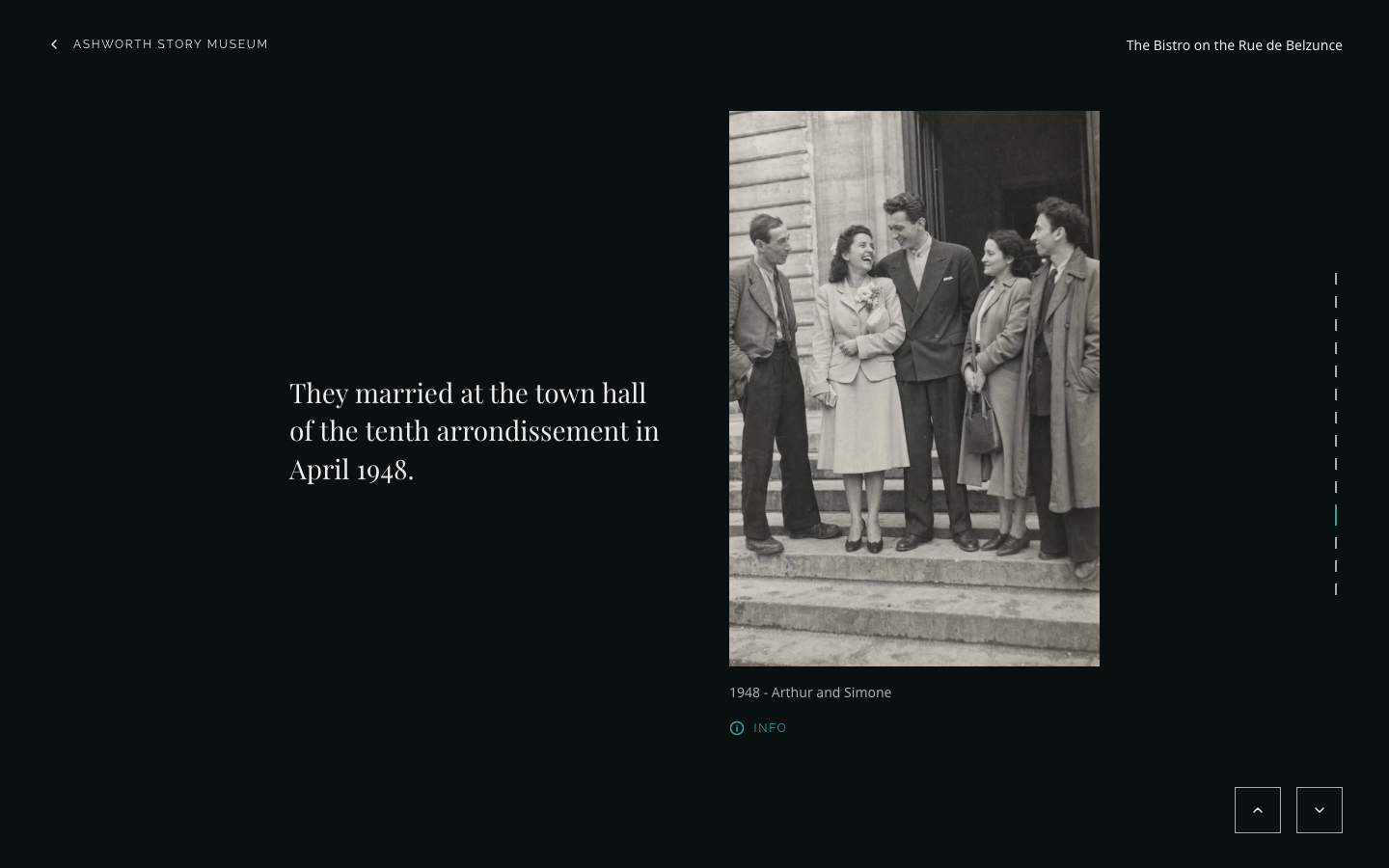
Step by step, top to bottom. Each step fills the screen, and the visitor scrolls down through them. The scroll stops wherever the visitor stops; it never snaps. A thin rail of marks on the right lights the current step, and the previous and next buttons glide one step at a time. Any touch, wheel or key press stops a glide. Scrolling back to the top returns to the cover.
Flowing, left to right. The steps hang side by side on one long wall, about three things in view at a time, at alternating heights like a hung exhibition. The curator’s words sit between the frames. A visitor swipes on a touch screen or trackpad, turns a mouse wheel, or takes hold of the wall and drags it; a flick lets it coast to rest. A line along the bottom shows how far along the visitor is.
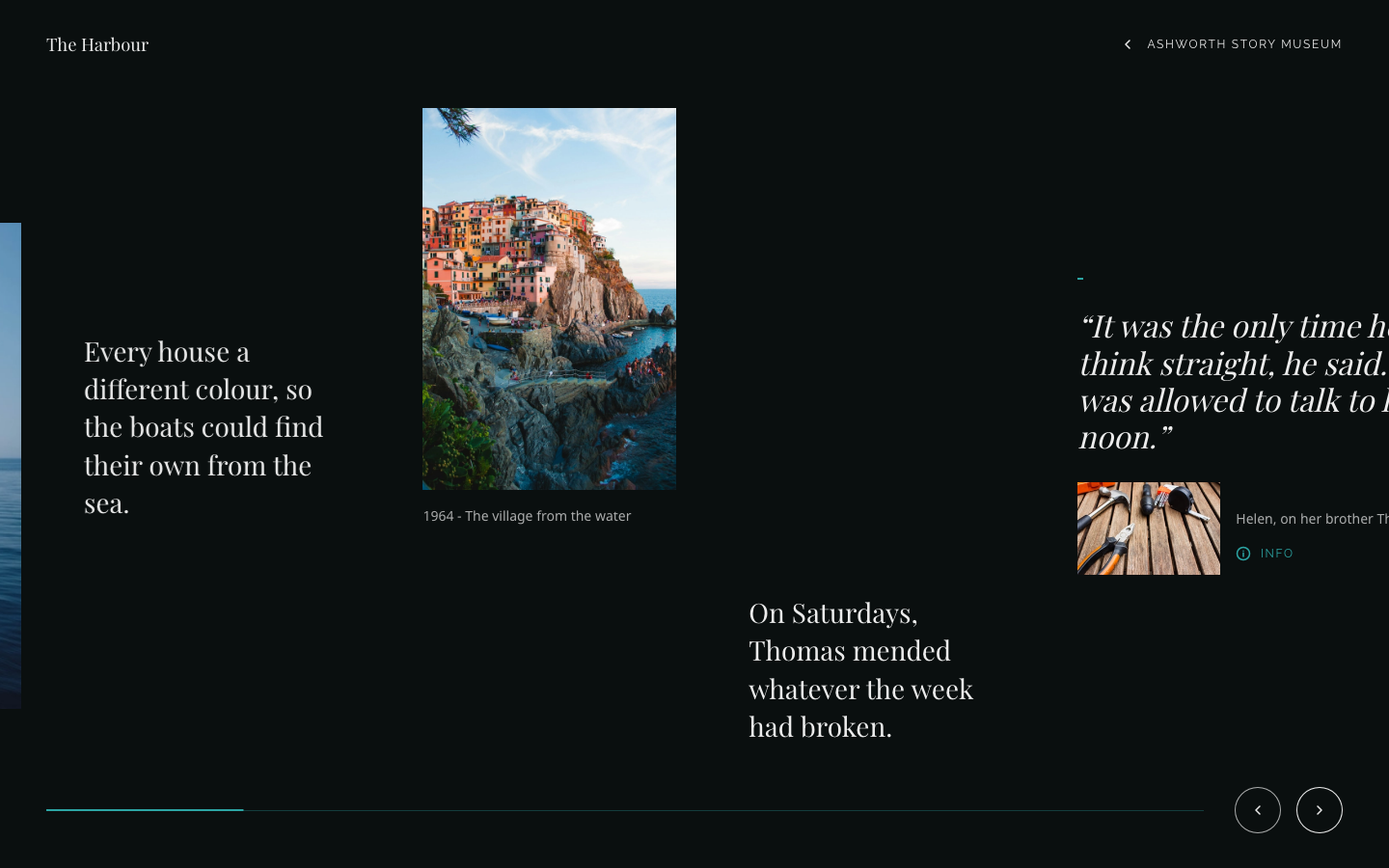
A flowing exhibit can start on its opening screen. The cover then sits over the wall until the visitor presses Begin the story or starts to move, and carries in to become the first step’s picture.
A step
Section titled “A step”A step holds up to three things and, if the curator wants, a line of text before them. The things are photographs, films, recordings and quotes, in any mix.
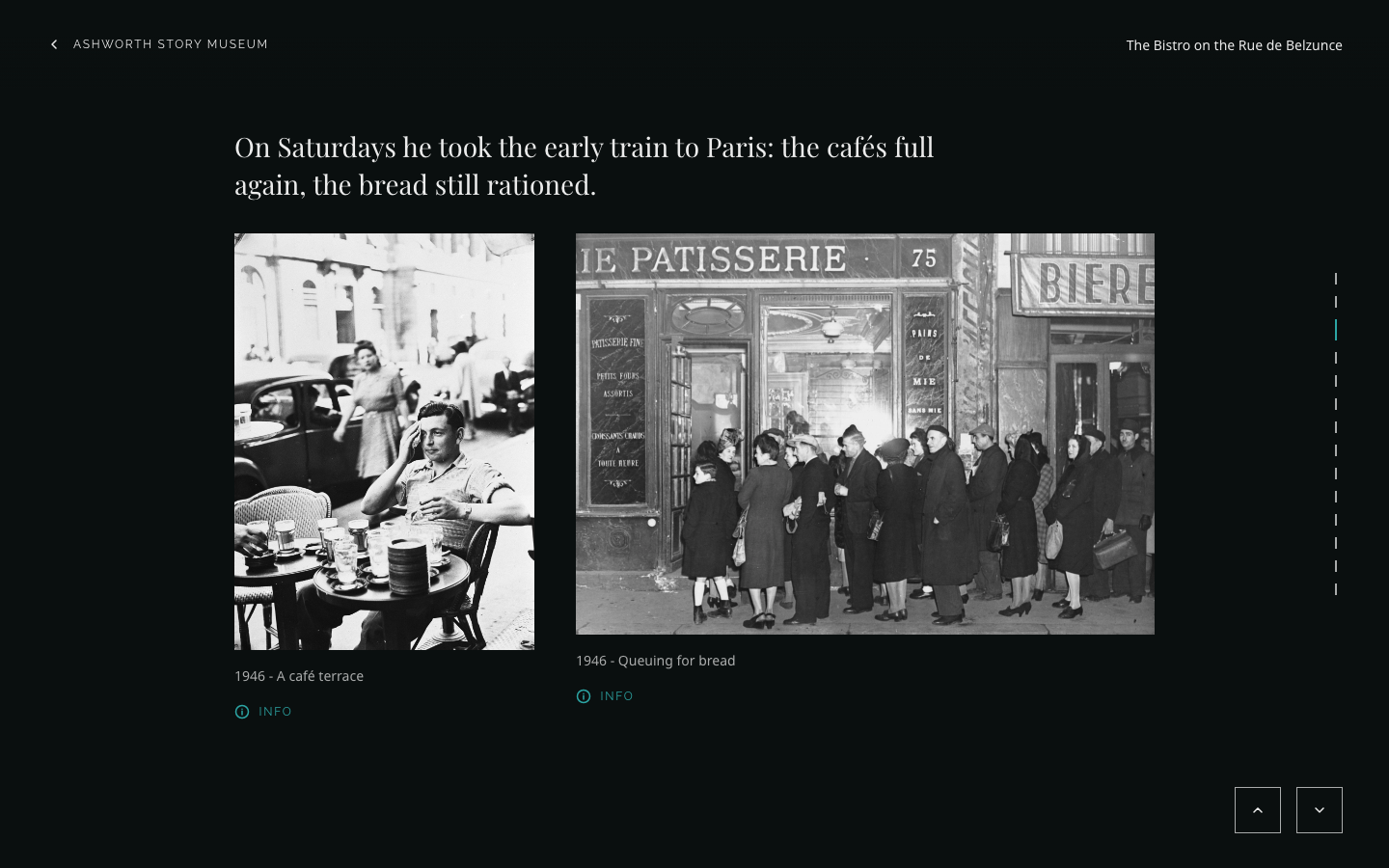
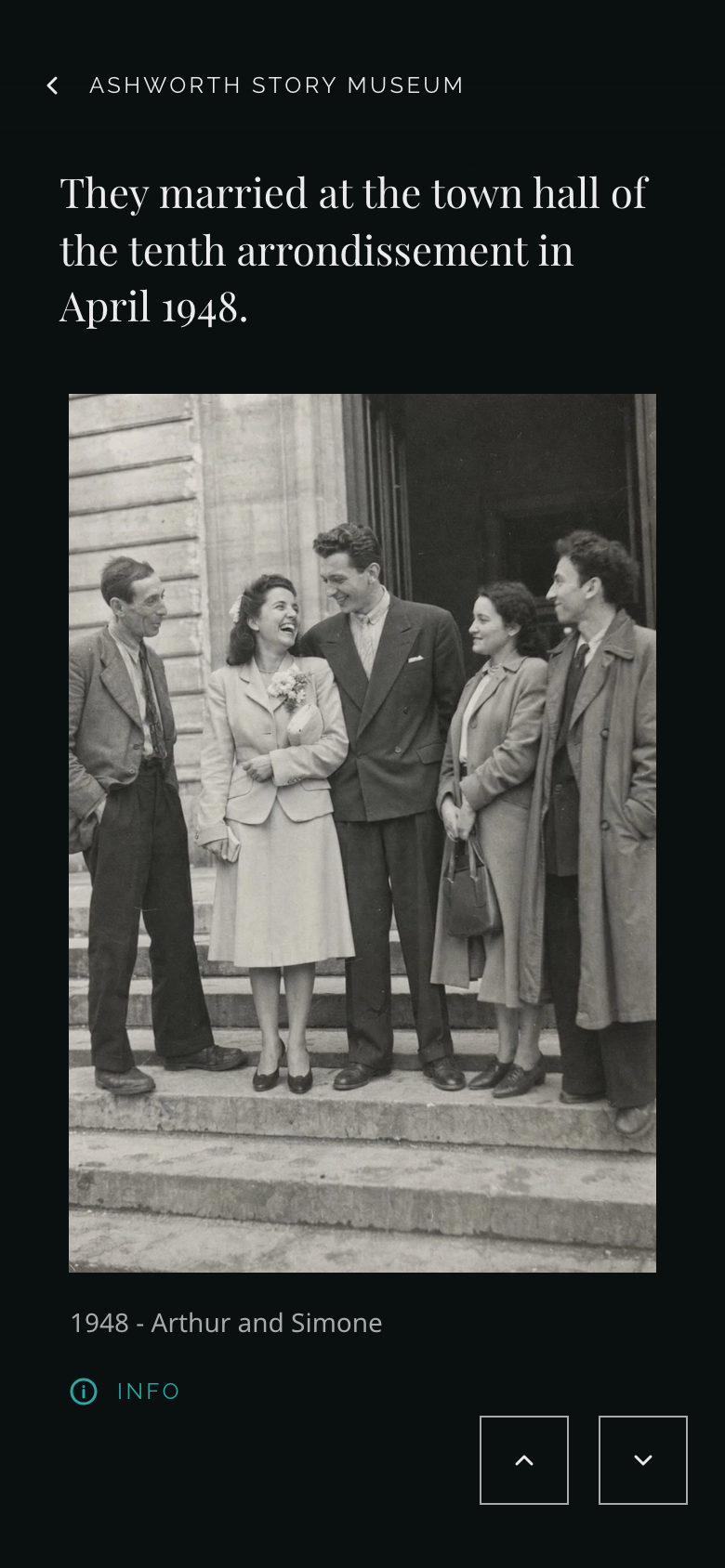
- Every caption is one line: the year, a spaced hyphen, the title. “1946 - Queuing for bread”. With no date it is the title alone.
- A photograph keeps its own shape. One marked Show larger is drawn bigger than the others in its step.
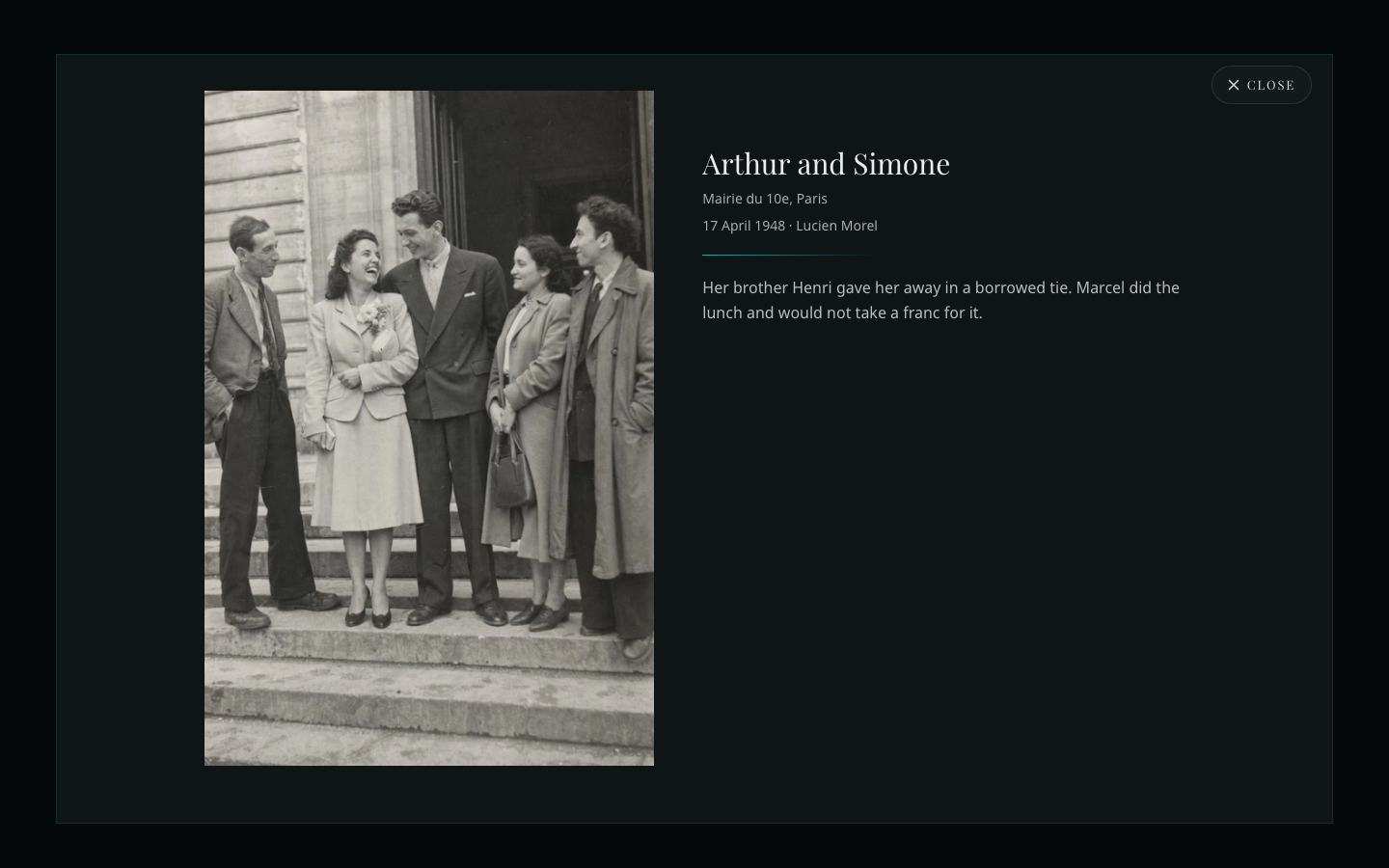
- Tapping a photograph opens the photo viewer, the same viewer as every other room, with the title, story, place, date and photographer. In the step-by-step view, Info under the caption opens it too.
Films and recordings
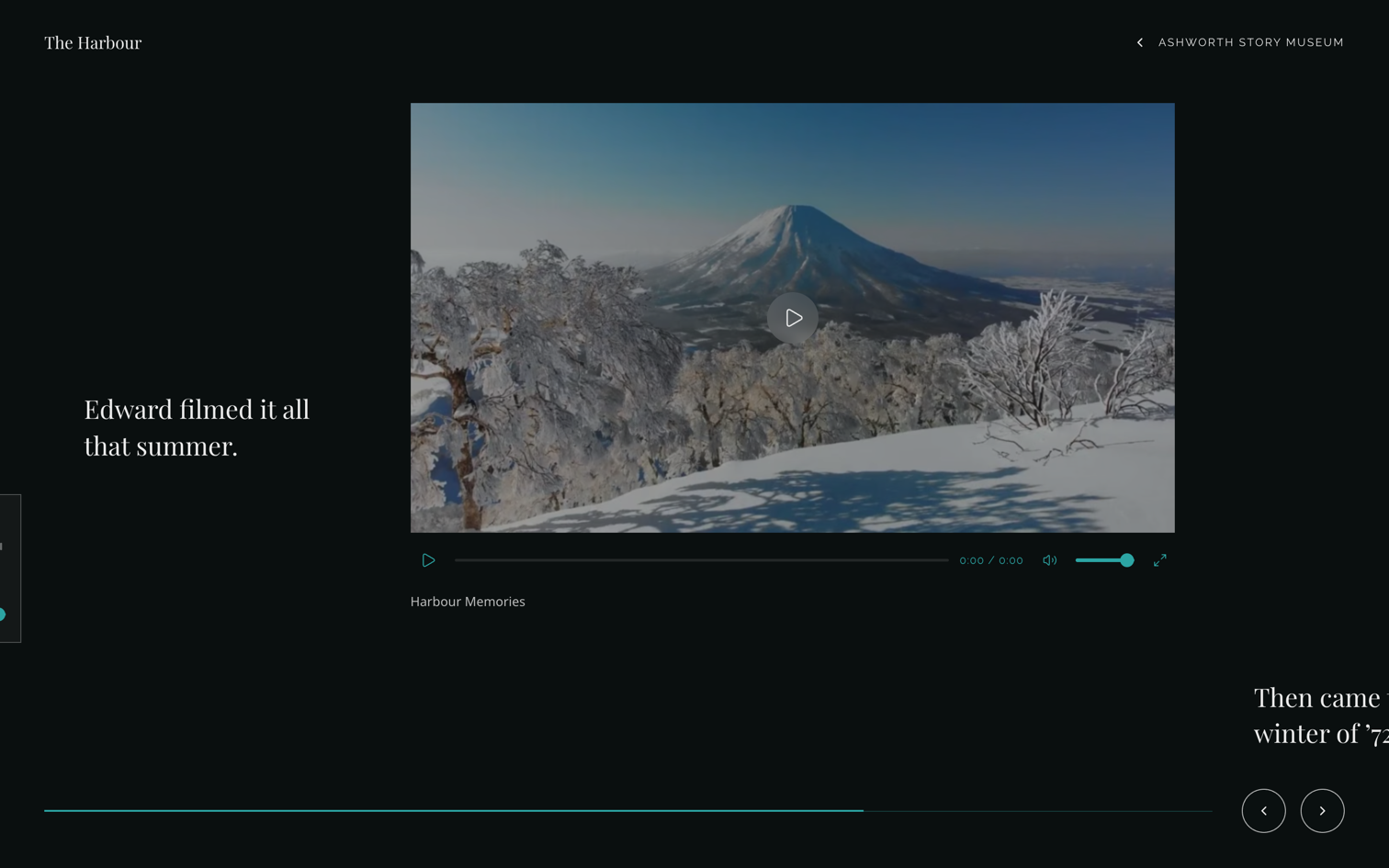
Section titled “Films and recordings”A film plays in the museum’s film player, and the rest of the room dims while it plays. Its caption adds the running time: “1962 - The harbour · 4 min”.
Watch large, at the right end of the film’s control bar, opens the film at the size of the window, on the family’s screening-room stage, and it keeps playing. Back to the exhibit, Escape or the end of the film returns it to its step. An exhibit has no fullscreen button: Watch large took its place.
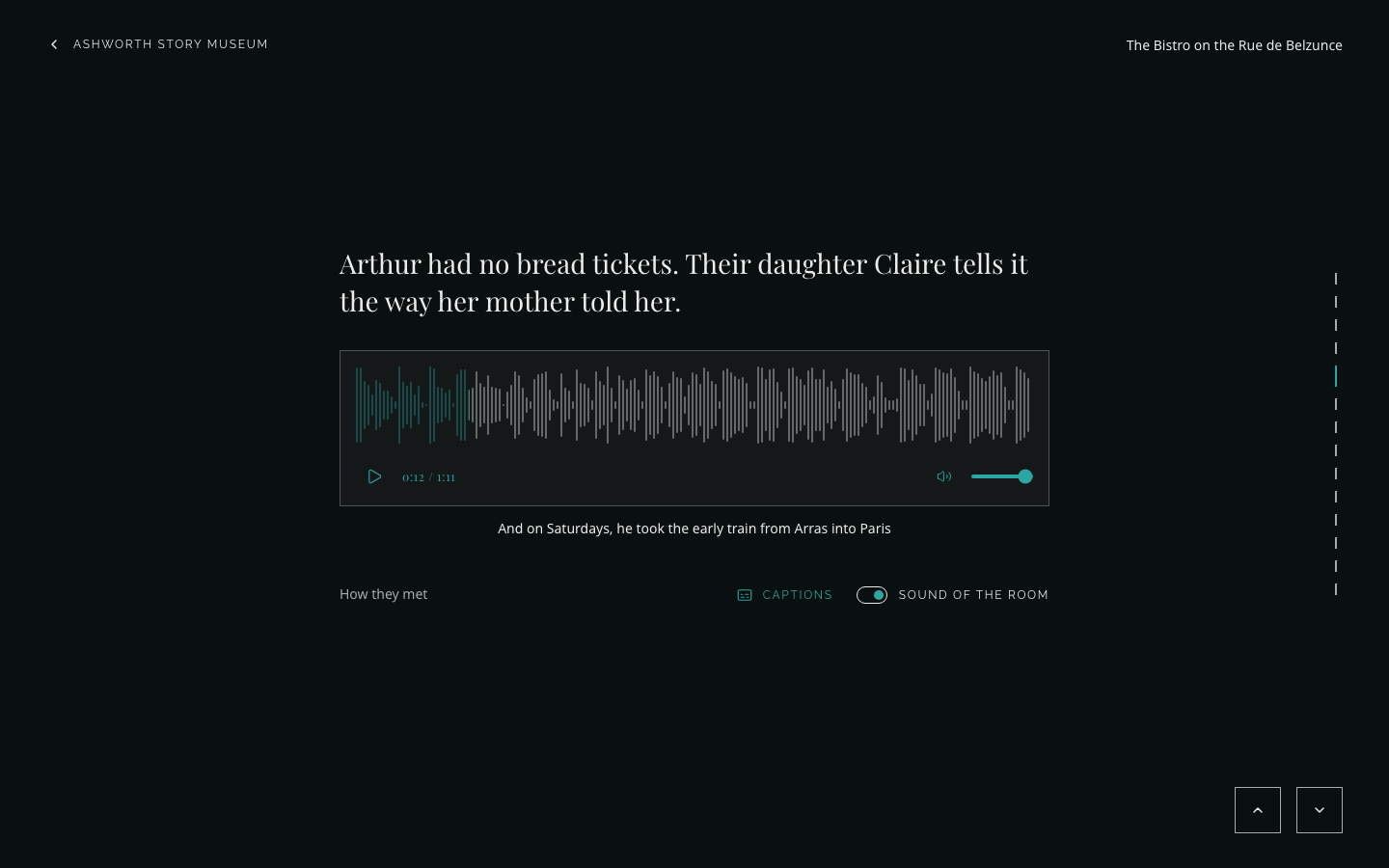
A recording plays in the audio player with its waveform. Two things can come with it:
- Sound of the room. The sound of the place plays quietly under the telling. It is on when the recording starts, and the Sound of the room button turns it off.
- Captions. Short lines that follow the voice, off until the visitor presses Captions. They come with the recording; a curator does not write or change them.
Quotes
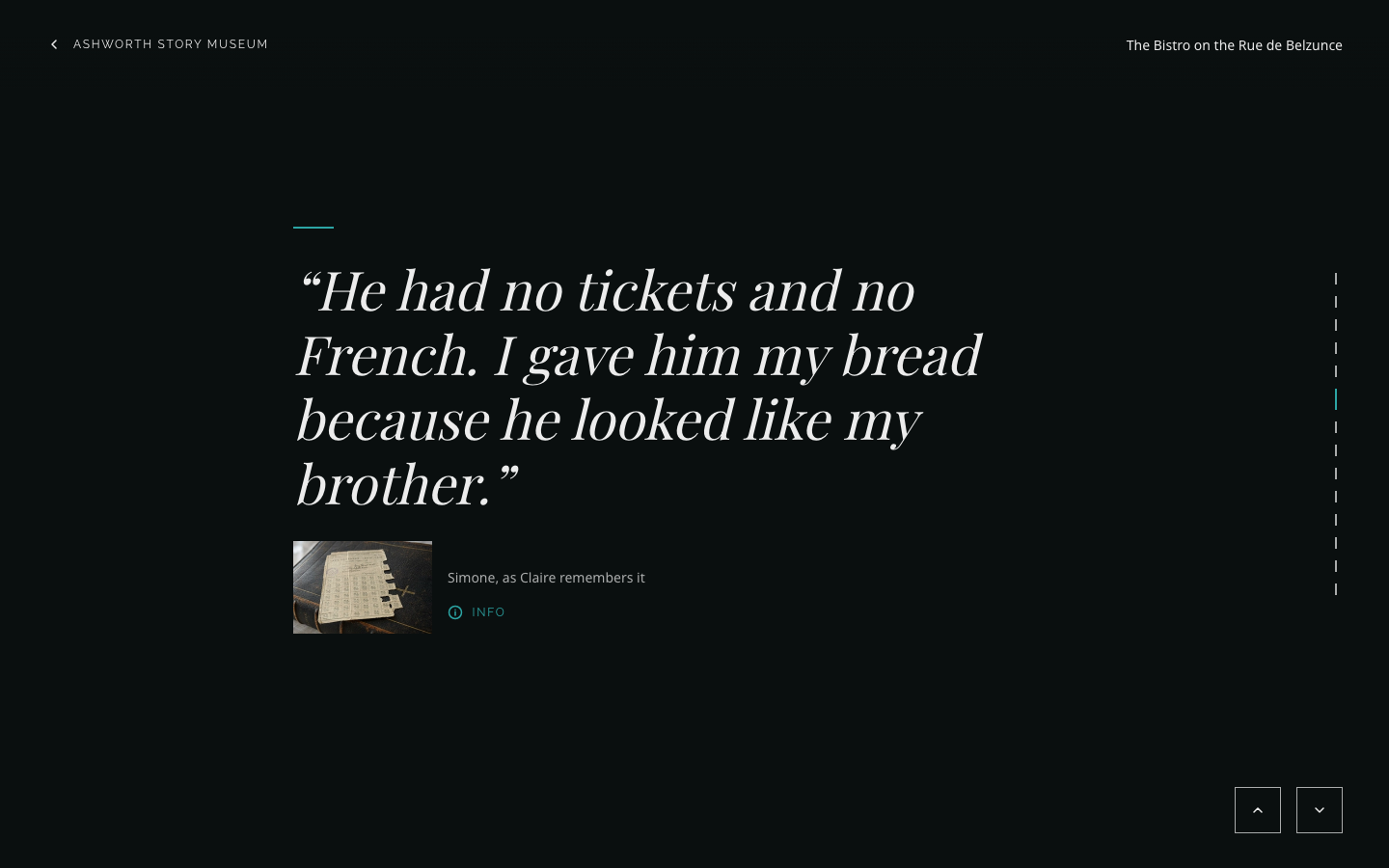
Section titled “Quotes”A quote is set large in curly quotes, with a fine rule and who said it. It can carry a small photograph of where the words come from; tapping it, or Info, opens that photograph in the viewer.
The end card
Section titled “The end card”Every exhibit ends on the same card: the curator’s closing line, “End of exhibit”, and “Curated by” with the curator’s name and year. ← Back to the lobby sits on the left. On the right, if the curator chose one, a Next exhibit card leads on to another story. An exhibit never loops back to its start.
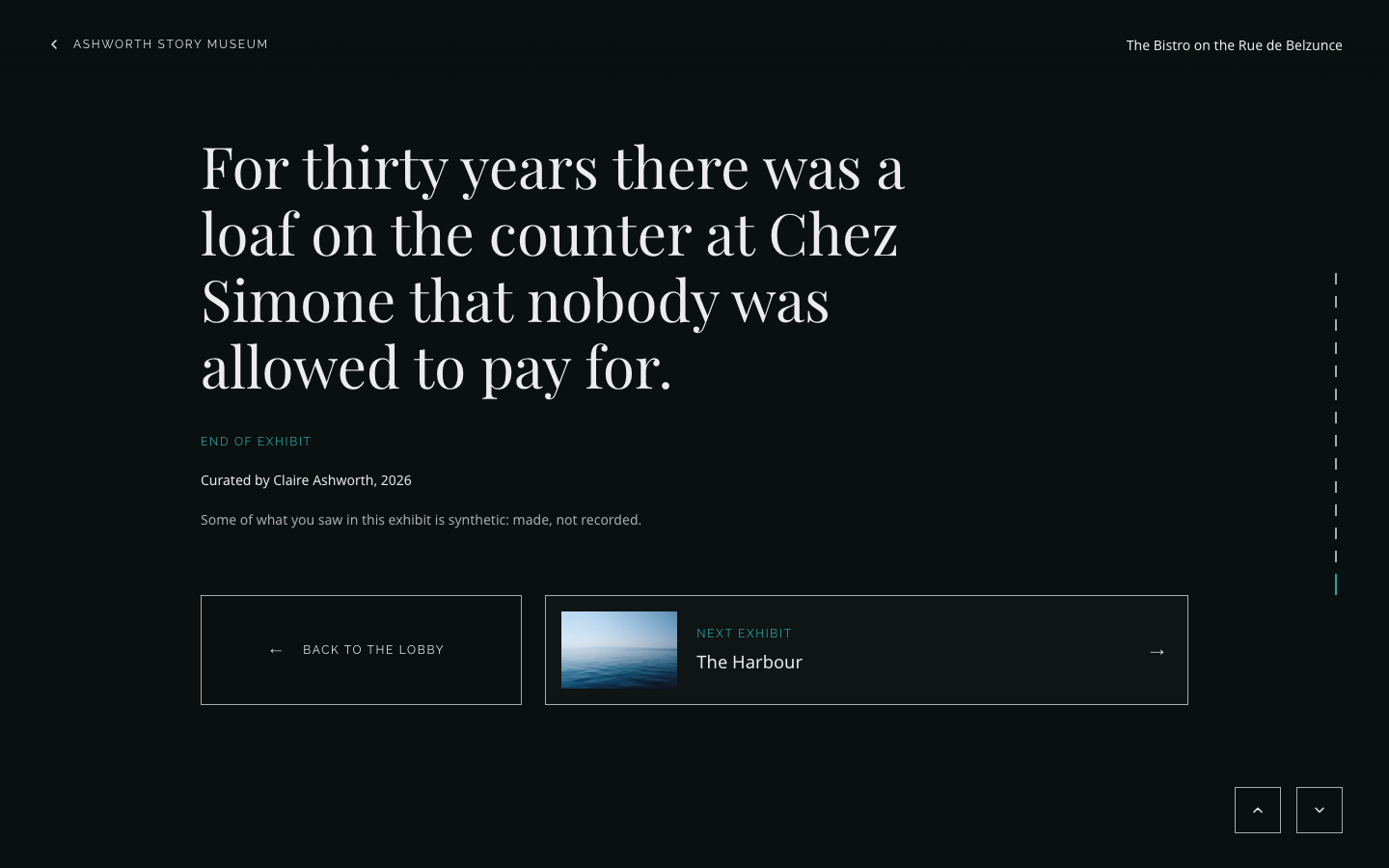
Made, not recorded. When an exhibit contains anything made with AI, the end card says so, in these words: “Some of what you saw in this exhibit is synthetic: made, not recorded.” It is one statement for the whole exhibit, and both Ashworth exhibits carry it.
On a phone
Section titled “On a phone”A phone always gets step by step, either way up, whatever the curator chose. On a phone the line of text sits above the picture, then the caption and Info. Tablets and computers get the view the curator chose.
A visitor who has asked their device for less motion gets no glides: each step arrives with a short fade, and a flick does not coast.
Setting it up
Section titled “Setting it up”A curator makes an exhibit in two places. The story is built inside the
museum, signed in. The room that hangs it in the lobby is a row in the
family’s config base Rooms table, in Airtable.
- Where: the family’s sandbox museum, signed in as one of its curators. A finished exhibit reaches the family’s live museum through a content release that we do (Going live). A live museum can’t be edited.
- Who: the family’s own curators.
- Switched on per family. Until we switch exhibits on, the page says “Exhibits aren’t switched on for this museum yet” and “Ask StoryKeep to enable them.”
- A computer, not a tablet. The editor is made for a computer with a mouse or trackpad. It still works in a narrow window, but curating on an iPad is not supported.
- Open Story exhibits. In the museum, open the ☰ menu and choose Story exhibits.
- Start the exhibit and build its steps. In New exhibit, type a title and press Start it, then add the steps as described under The editor.
- Publish. Press Publish and confirm. Visitors only ever see the published version.
- Add its room in Airtable. In the lobby, Open in Airtable in the ☰
opens the family’s Rooms table. Add a row:
- Type:
exhibit - Exhibit: the exhibit’s slug, copied from the exhibit list, such as
the-bistro - Name, Slug, Subtitle (such as “A story exhibit”), Cover and Sort, as for any room
- Status:
under construction
- Type:
- Check it in the lobby. Signed in as a curator, open the lobby. The room is there and opens the exhibit. Visitors do not see it yet.
- Open it. When the exhibit is ready, set the room’s Status to
open.
| Room Status | Who sees the exhibit |
|---|---|
open |
Everyone with access to the museum, once the exhibit is published. |
under construction |
Curators only. |
hidden |
Curators only. |
| No room | Curators only. |
If the Exhibit field is empty, the room shows that the exhibit is in preparation. If it holds a slug that no exhibit has, the room opens a page that can’t be found, so copy the slug from the exhibit list rather than typing it. As with any room, visitors see a change to the room after the next scheduled refresh (How Curation Works).
On an exhibit’s page, curators see Edit this exhibit, which opens it in the editor. Inside a room, Open in Airtable opens that room’s own base.
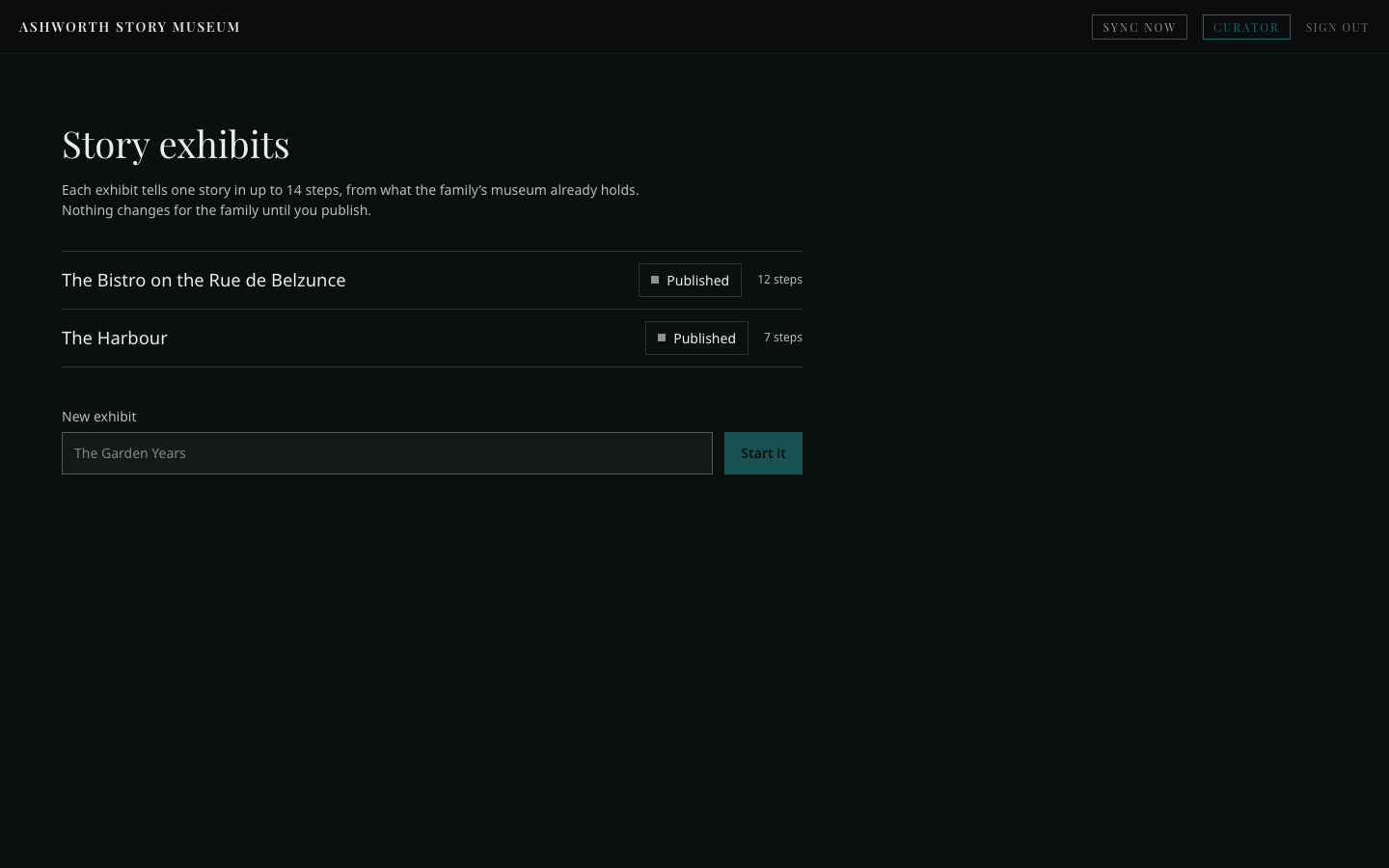
The list
Section titled “The list”Story exhibits lists the family’s exhibits with how many steps each has, where it stands, and its slug. Each exhibit also says whether it hangs in the lobby, with its room and that room’s status, or that it is “not in the lobby yet”. The badges:
| Badge | Meaning |
|---|---|
| Draft · not yet visible to the family | Never published. |
| Published · unpublished changes | Published, and changed since. |
| Published | Published, with nothing waiting. |
The editor
Section titled “The editor”The editor has three columns: the steps on the left, the selected part in the middle as the visitor will see it, on the exhibit’s own dark ground, and the fields for that part on the right. It saves by itself a moment after each change; the top shows “Saving…”, then “Saved”.
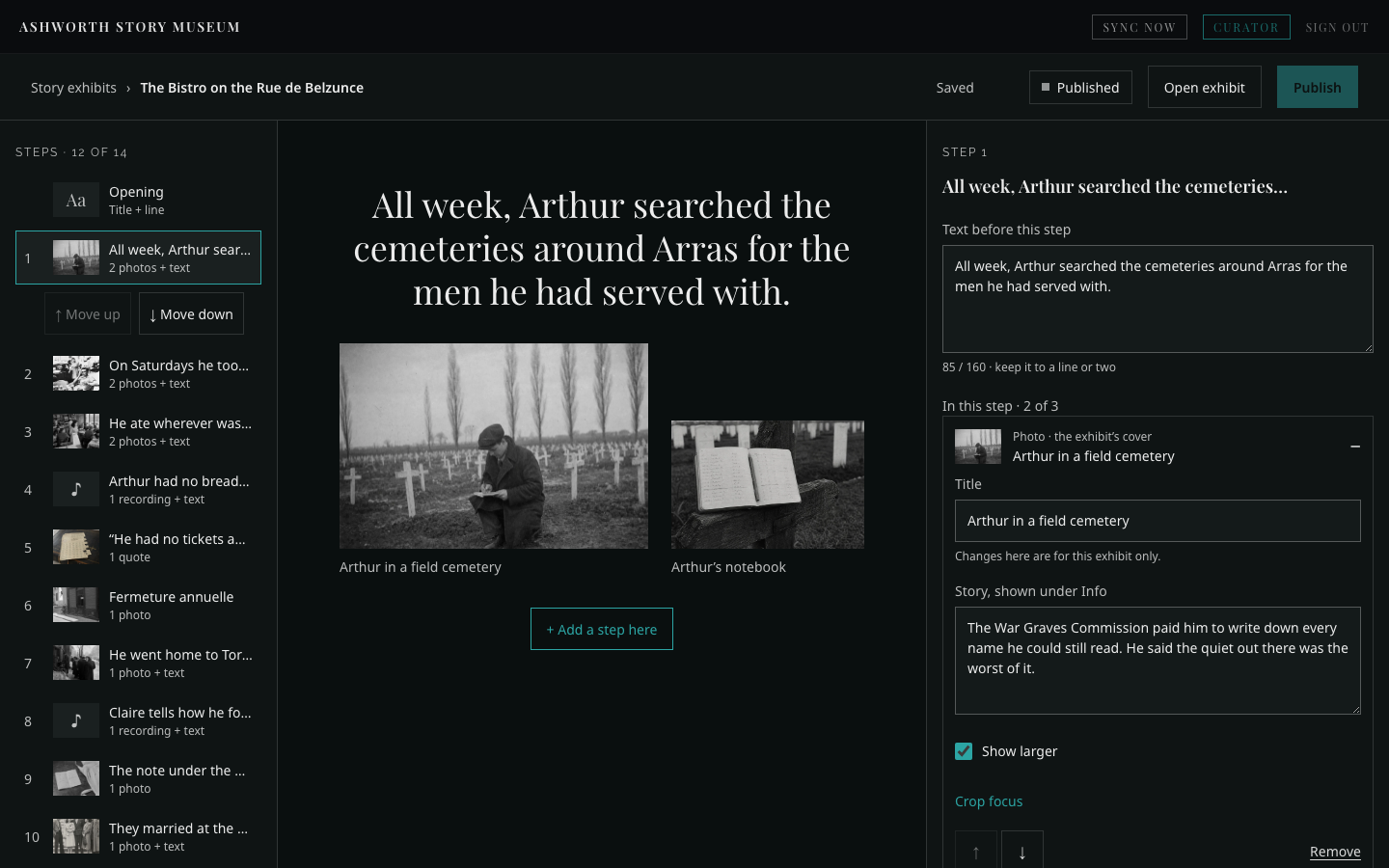
- Start it. In New exhibit, type a title (“The Garden Years”) and press Start it. The exhibit’s address is made from the title.
- The opening. Choose Opening in the steps and fill in Title and Line under the title. Both show on the cover. Choose a cover picks the photograph behind them, any photo in the collection, also one in no step. Without one, the first photo of step 1 is the cover.
- Add a step. Press + Add a step. The picker opens on the family’s collection: search titles and captions, or narrow it with All, Photos, Films or Recordings. Choose one to three things; they are numbered in the order chosen. Press Add step. Words only starts a step with no things, just the curator’s words.
- Write the line. In Text before this step, write what joins this step to the last. Keep it to a line or two.
- Shape each item. Open an item to change its title for this exhibit, mark a photograph Show larger, or set its Crop focus.
- Add a quote or a text. Under a step’s items, + Write a quote adds the words, Who said it, and if wanted a photograph of where they come from. + Write text adds a short passage read at reading size, not as a heading; a blank line starts a new paragraph.
- Order the steps. Select a step and use ↑ Move up and ↓ Move down. Within a step, the arrows by each item move it earlier or later.
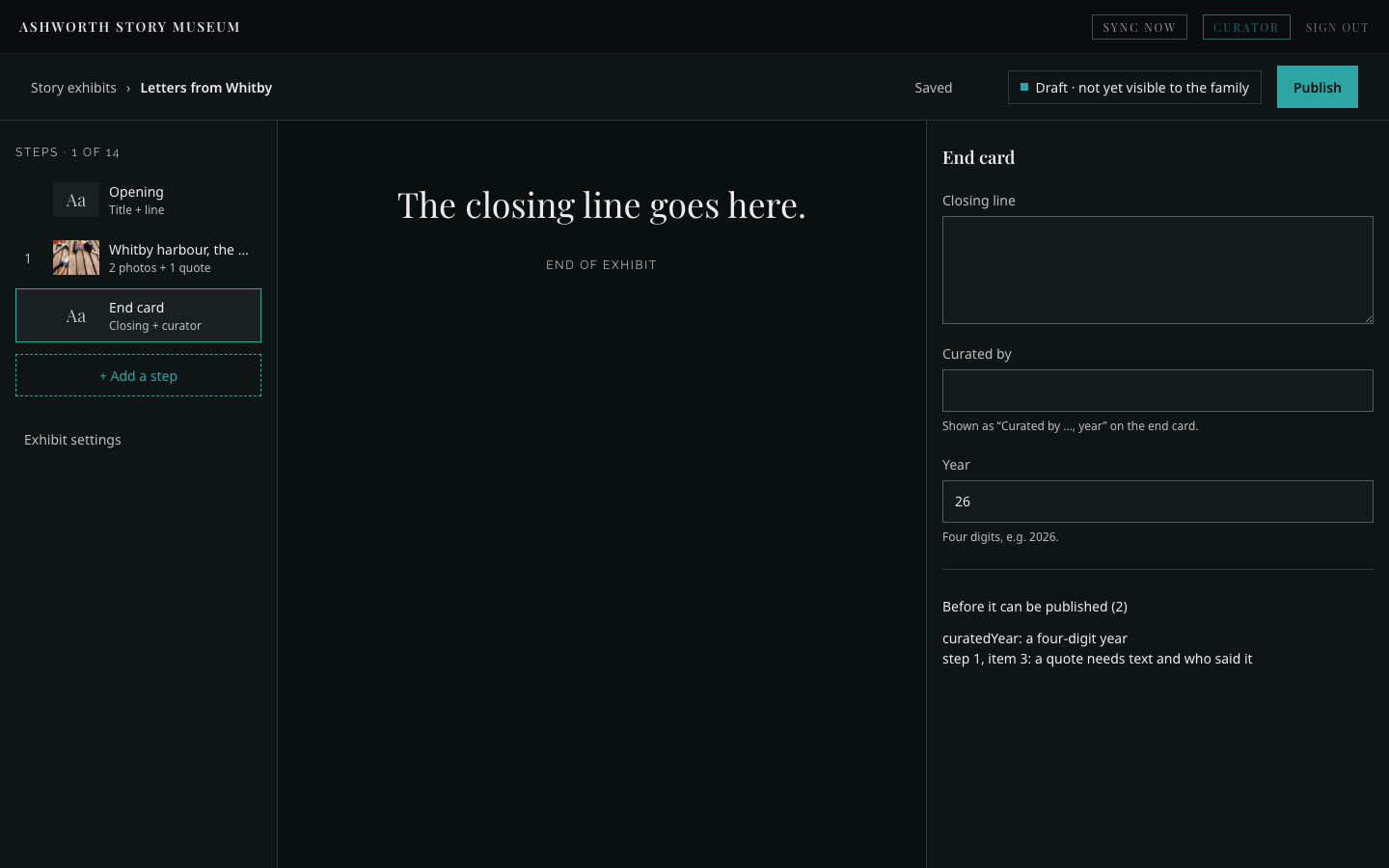
- The end card. Choose End card and fill in Closing line, Curated by and Year.
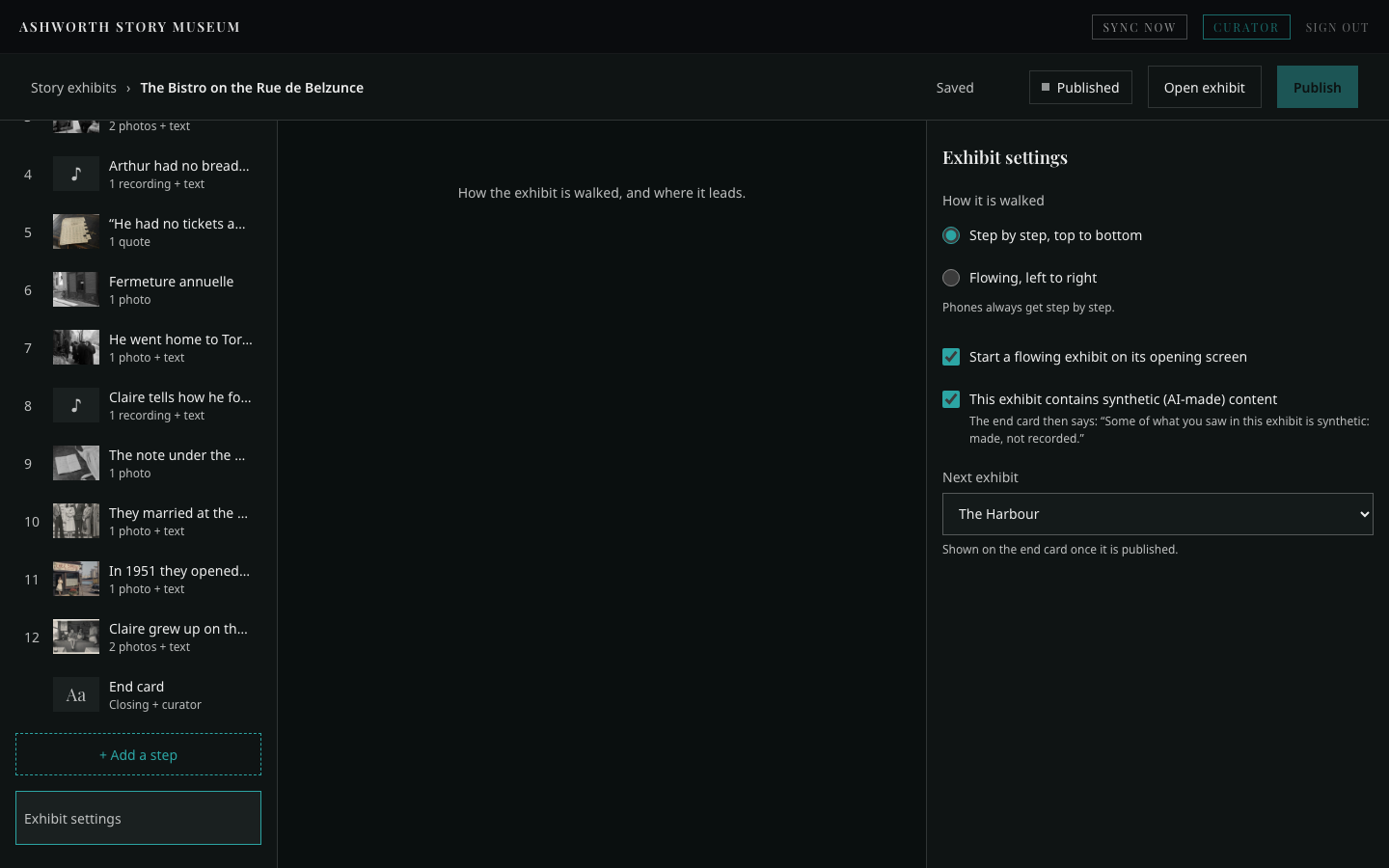
- Exhibit settings. Choose how it is walked, whether it is marked as containing synthetic content, and which exhibit comes next.
- Publish. Press Publish, read the dialog, and confirm.
Choosing from the collection
Section titled “Choosing from the collection”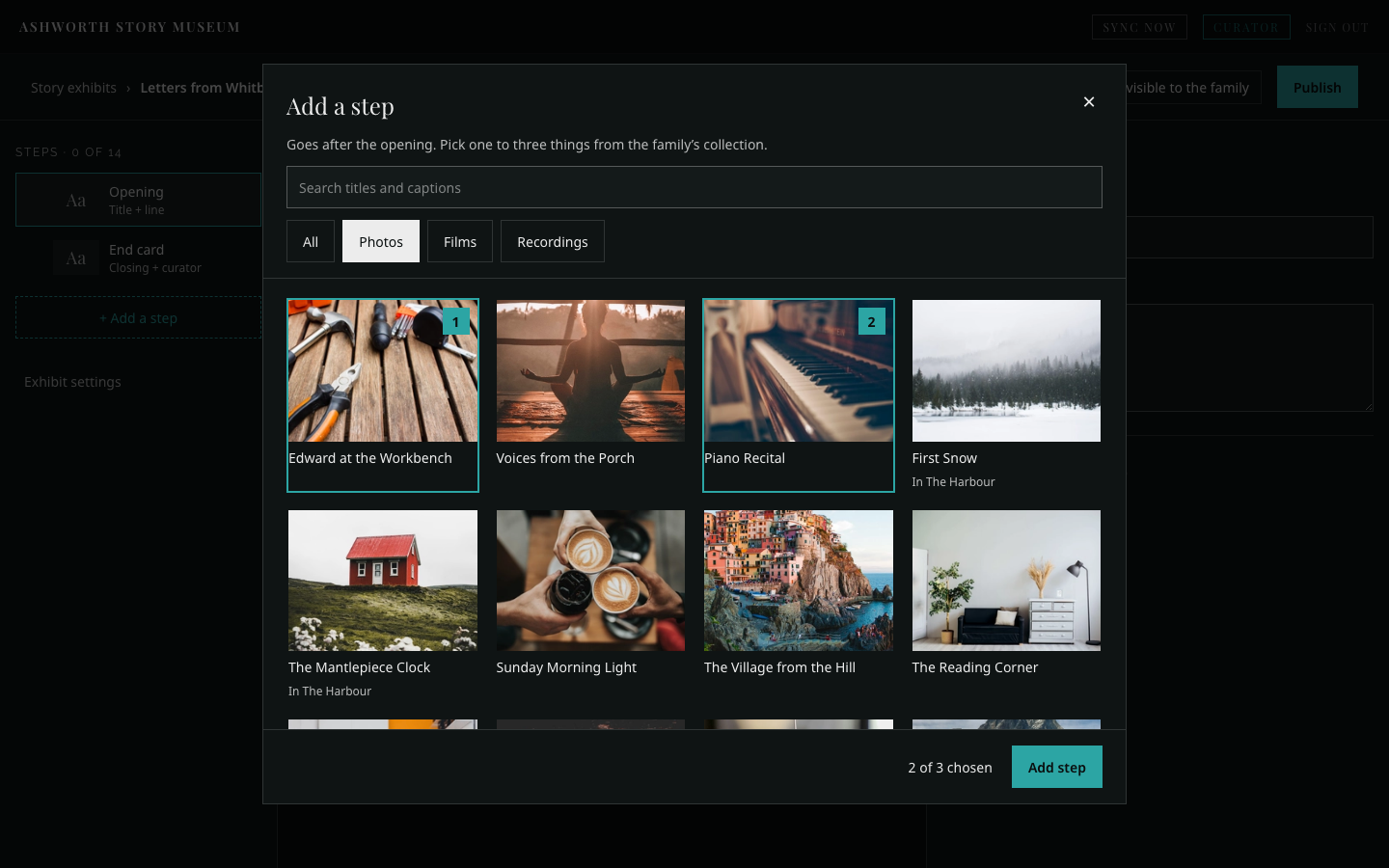
- The picker shows only what is already in the family’s museum. Something added in Airtable that has not yet reached the museum is not there yet. Films and recordings attached to a gallery photograph or photo set are there too, each as a thing of its own.
- A thing can be in more than one exhibit. It shows “In” and the other exhibits’ titles, as a reminder, never a block.
- The same picker adds to a step (“Add to this step”, while there is room) and chooses a quote’s photograph (“A photo for this quote”).
Every option
Section titled “Every option”On a step
| Option | What it does |
|---|---|
| Text before this step | The curator’s words before the step’s things. A counter shows “/ 160 · keep it to a line or two”; it turns to a warning over 160 characters but never stops the curator. |
| + Add from the collection | Opens the picker for this step, while it has room. |
| + Write a quote | Adds a quote to this step, while it has room. |
| Remove this step | Removes it. “Undo” stays on screen for ten seconds. |
| + Add a step here | Under the selected step in the middle column: adds the next step right after it. |
On a photograph, film or recording
| Option | What it does |
|---|---|
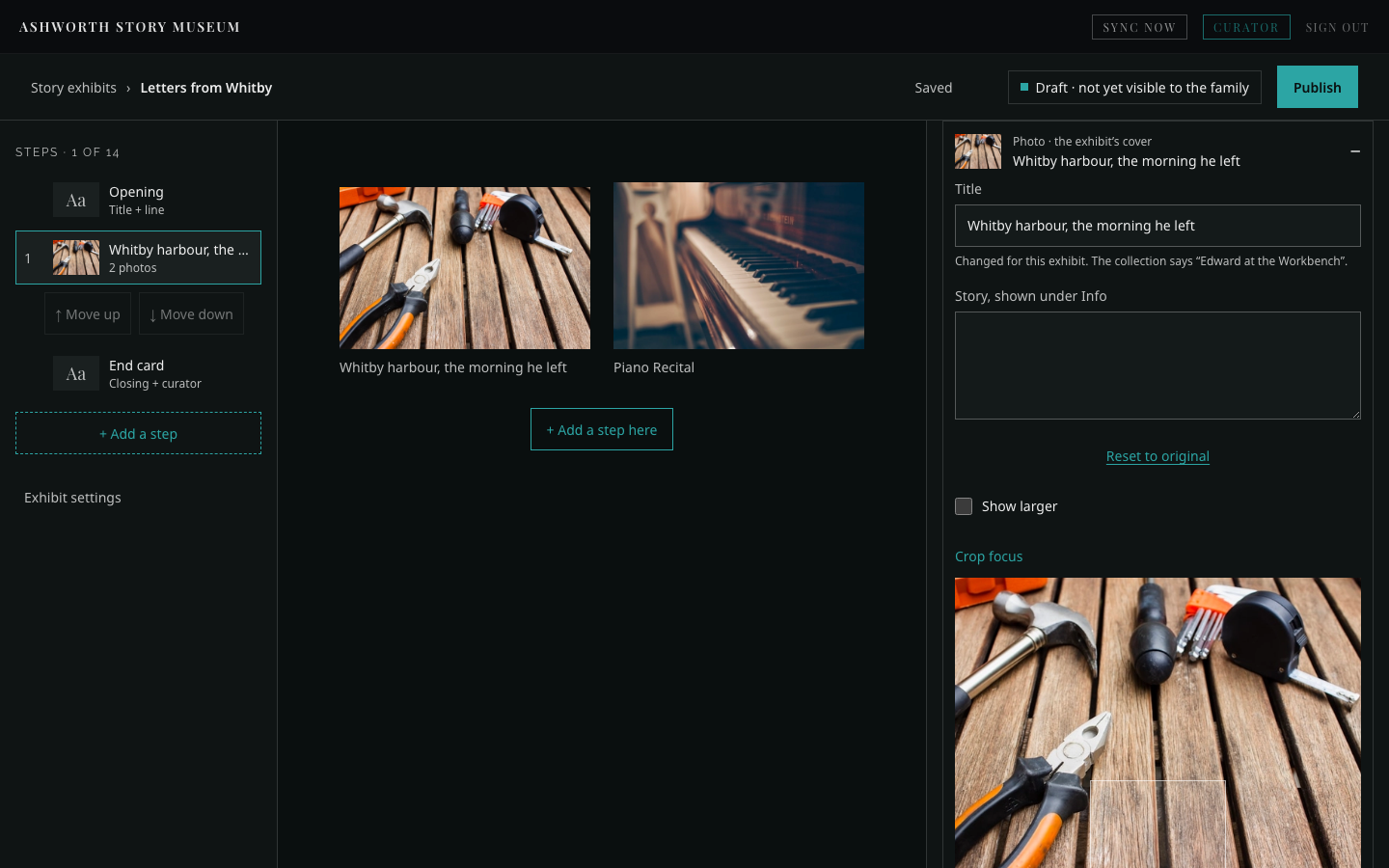
| Title | Changes the title for this exhibit only. The note under it then says “Changed for this exhibit. The collection says” and the original. |
| Story, shown under Info | Photographs only. The story in the viewer, for this exhibit only. |
| Reset to original | Back to the collection’s own words. The family’s collection is never changed by an exhibit. |
| Show larger | Photographs only. Draws it bigger than the others in its step. |
| Crop focus | Photographs only. A three-by-three grid over the picture: tap the part that must stay in view where the exhibit crops it, on the cover and in small pictures. The gallery’s own crop is not carried over. |
| Year or date | Films and recordings. “1962” or “1962-06”; the year goes into the caption. |
| ↑, ↓, Remove | Move the item earlier or later in its step, or take it out. |
Until a cover is chosen, the first photograph of step 1 is labelled Photo · the exhibit’s cover: it is the picture on the opening screen. A recording’s captions are shown as “N captions, kept as they are.”; they cannot be edited.
On a quote
| Option | What it does |
|---|---|
| Quote | The words, without quotation marks; the room adds them. |
| Who said it | Shown under the words: “Simone, as Claire remembers it”. |
| + Add a photo, Change photo, Remove photo | The small photograph beside the words, with its own Crop focus. |
End card
| Option | What it does |
|---|---|
| Closing line | The last words of the exhibit. |
| Curated by | The curator’s name: “Curated by Claire Ashworth, 2026”. Leave it blank and the line is left off. |
| Year | Four digits, such as 2026. |
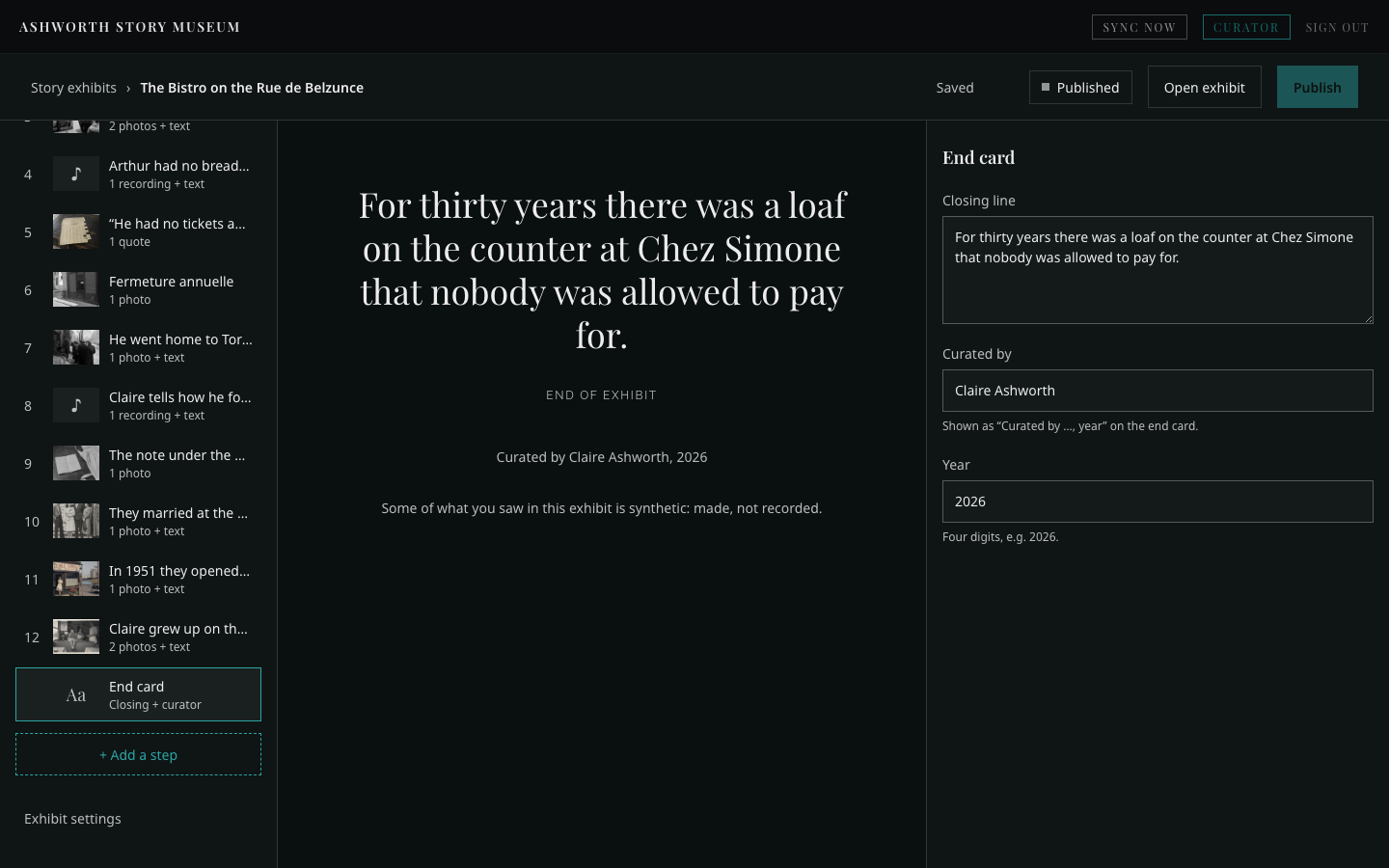
Exhibit settings
| Option | What it does |
|---|---|
| How it is walked | Step by step, top to bottom or Flowing, left to right. Phones always get step by step. |
| Start a flowing exhibit on its opening screen | A flowing exhibit opens on its cover first. |
| This exhibit contains synthetic (AI-made) content | Adds “Some of what you saw in this exhibit is synthetic: made, not recorded.” to the end card. One switch for the whole exhibit. |
| Next exhibit | None, or another of the family’s exhibits. The card shows once that exhibit is published. An exhibit cannot lead to itself. |
Limits
Section titled “Limits”- 1 to 14 steps. At fourteen, + Add a step is greyed out. The rail counts “Steps · N of 14”.
- Up to three things a step. The step shows “In this step · N of 3”.
- A line or two of text a step. 160 characters is a guide, not a wall.
What the curator is told
Section titled “What the curator is told”Until an exhibit is complete, a list headed Before it can be published says what is missing. Confirming Publish before then shows “Not published yet. First:” and the same list. It catches:
- an exhibit with no title, or with no steps or more than fourteen;
- a step with neither text nor anything in it;
- a quote with no words or no one who said it;
- a photograph, film or recording with no title;
- a year that is not four digits;
- an exhibit set to lead to itself.
The wording is still plain-technical, such as “curatedYear: a four-digit year”; it names the step and item to fix.
Going live
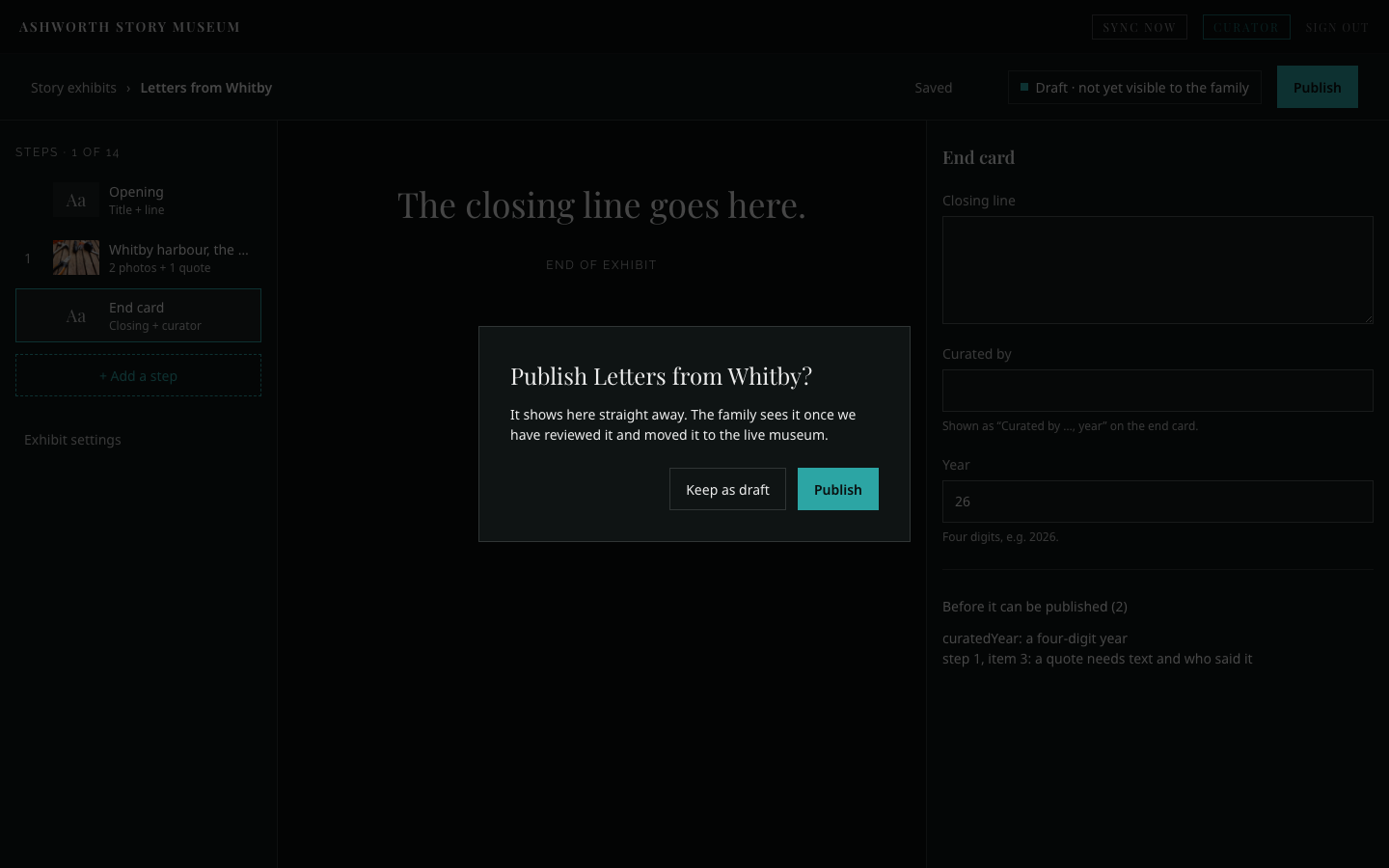
Section titled “Going live”Publish asks first: “It shows here straight away. The family sees it once we have reviewed it and moved it to the live museum.” Keep as draft backs out; Publish goes ahead.
In the sandbox, a published exhibit shows on its page at once: that is the version for review. We review it on the real exhibit page, then move it to the family’s live museum. Exhibits go live one at a time, each with about 48 hours’ notice, and a Next exhibit must already be live or move with it. The rest is the same circuit as any other change: Going live.
Changes after publishing show as Published · unpublished changes in the list, and Unpublished changes in the editor, until the curator presses Publish again. Open exhibit opens the published exhibit in a new tab.
How it’s built
Section titled “How it’s built”The exhibit is the one room whose content is not in Airtable. Its steps and items are rows in the museum’s own database (Neon), written by the editor and read by the exhibit page; no drain touches them. The room that hangs it in the lobby is an ordinary Airtable row, and arrives like any other room.
Airtable (family config base) Neon (per environment) Rooms row Type exhibit ──▶ drain ──▶ rooms ──▶ lobby tile Exhibit: slug │ (Focal Point → the tile's crop) ▼Editor (sandbox, signed in) ──Publish──▶ exhibits / steps / items ──▶ exhibit page │ content release (by us) ▼ live museum's Neon- The room decides who sees it. A visitor sees an exhibit only when it is
published and a Rooms row of Type
exhibitnames it with Statusopen. Curators see it either way. The museum reads the room’s Exhibit and Status from the family’s Rooms table itself (held for up to five minutes), not from the refreshed copy, so opening or closing the room needs no refresh. The room’s page hands straight over to the exhibit. - Media come from what the museum already serves. The picker reads the family’s drained collection, including recordings and films attached to gallery photos and sets, never Airtable directly. A photo, recording or Vimeo link a curator adds in the editor is stored with the exhibit, not in the collection.
- Edited in the sandbox, frozen live. Editing is switched off in code on the live museum. Publish writes to the database of the museum it runs on, so in the sandbox it is the version we review. A content release copies a family’s published exhibits into the live museum’s database: a dry run first, the whole run blocked if any exhibit fails its checks or a film or recording doesn’t answer, each copy recorded so it can be rolled back, and a backup of the live museum taken and checked before any write. A code release never moves an exhibit.
- The live museum reads its own copies. A family’s live museum reads its own copies of its Airtable bases, the family tree and the timeline included since 2.2.27. An edit in the sandbox reaches the family only when we copy it over again, as a deliberate step.
- The lobby tile’s crop. The room’s Focal Point travels with the Rooms row through the refresh into the museum’s database, and the lobby tile crops its cover to it, the same nine positions as a photograph. Empty is the centre.
Decisions behind the shape
Section titled “Decisions behind the shape”- One story, start to finish. The other rooms show the family’s material by kind. An exhibit tells one story in one order, which is the “curated narrative structure” Piet asked for in his first letter.
- Made in the museum, not in Airtable. An exhibit is about order, pairing and pace, so the curator builds it beside the step being written, shown as the visitor will see it. It is the first part of the museum curated this way.
- Only what the museum already holds. An exhibit picks from the family’s collection and never adds to it. Changing a title changes it for the exhibit alone; the collection keeps its own words.
- Fourteen steps, three things a step. An exhibit stays one story a visitor walks in one sitting. A longer story can lead on to another exhibit through Next exhibit.
- Phones always walk step by step. The flowing wall is made for a wider screen; a phone gets the view that reads one step at a time.
- Made, not recorded, said once and plainly. If anything in an exhibit was made with AI, the end card says so in words, rather than marking each picture.
- Captions are not the transcript. Recording captions are short lines a visitor can read while listening. They arrive with the recording, so a curator never has to type them.
- One photo viewer. A photograph opens in the same viewer as in every other room, so a visitor learns it once.